
Step 1A. View the Official Event Manual:
-
Please CLICK HERE to view the 2026 Pop Warner Super Bowl and Cheer & Dance Nationals Official Event Manual.
-
Once you have clicked the link, please find where it states: "Get all of the details in this year's National Championships Event Manual" and click the red hyperlink on the "National Championships Event Manual" portion of the sentence. This will open the latest version of the Official Event Manual.
- Please ensure that you familiarize yourself with the payment deadlines that apply to your team based on its specific regional qualifying dates or initial team deposit registration date. This will help ensure that your team remains compliant and does not face delays.
Step 1B. Find Your Team ID:
To find your Team ID, please complete the following steps:
-
Go to the following Pop Warner Sports Connect Association URL: Popwarner.sportsaffinity.com
-
Click "Login with Email" to enter your email address and log in with your Coach credentials. If you have not set up your Single Sign-On (SSO), you will receive a verification email sent to you.
-
Once logged in, go to your My Account page
-
Click on the Teams tab in the navigation bar
-
The Team ID for your team is listed next to the team name, as shown in the image below. This Team ID is unique for each team and should be entered for its corresponding team when completing the team deposit registration for that team.
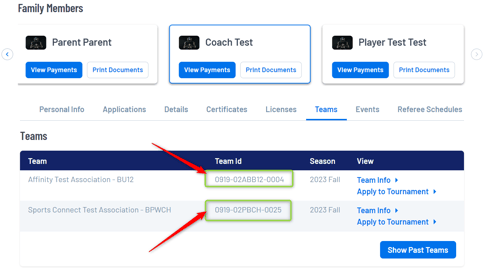
NOTE: The above image shows where you will find your Team ID. When completing your team deposit registration, please ensure that you are using the correct Team ID for the team you are registering. Failure to use the correct team ID will result in delayed processing of your team.
Step 1C. Complete Your Rooming List:
- Please CLICK HERE to download the 2026 Rooming List template.
- Completely fill out your rooming list for your team(s), including all required fields. If you have multiple teams, each team will have a separate rooming list.
- Please make sure to save your completed rooming list in Excel (.XLSX) format ONLY. Failure to do so will lead to delays in processing your team when you are required to upload the rooming list during the upcoming team deposit registration step.